Project Zomboid 42.22 Save Conversion and 42.21 Rollback
Protect the world before Continue, keep the _backup, and know how Steam rollback differs from undoing a converted save.
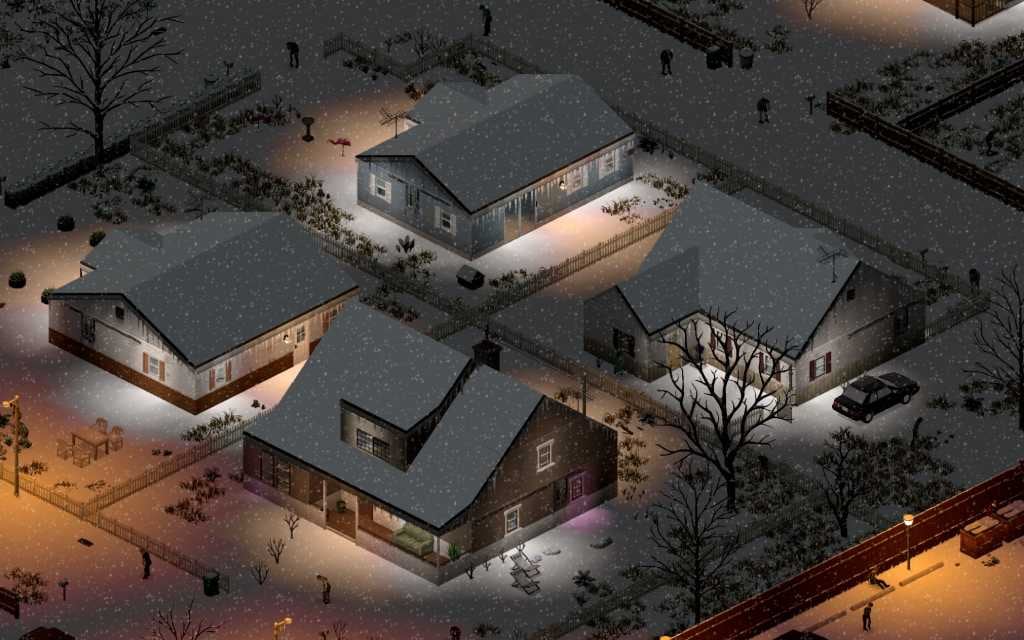
Build 42.22.2 Stable (9 November 2026) asks many survivors the same question the moment they hit Continue: convert this older world? Accepting converts the save for the new client and creates an automatic sibling folder with _backup in the name. That prompt is not optional flavor—it is the line between a working season and a modded world you cannot quietly undo.
This page covers what conversion does, how to copy a manual backup first, what to do when Workshop mods go red, and how rolling the game back to 42.21 differs from restoring a pre-conversion save. Pair it with Build 42.22, Steam Branches, Save Backup, Mods, Best Mods 2026, and Returning Players.
What happens when you load an older world
- Steam updates the default Stable client to 42.22.2 (no Pre-Release opt-in required anymore).
- You choose Continue or Load on a world last saved on 42.21 (or earlier 42.22 Pre-Release).
- The game shows a conversion dialog.
- If you accept, the world is rewritten for 42.22.2 and a
_backupcopy is created beside it. - If you cancel, close the game and make a manual copy before you try again.
Vanilla unmodded saves are expected to continue. Modded seasons need matching Workshop updates. Challenge modes (including A Really CD DA) have seen conversion edge cases—community workarounds sometimes involve copying the save folder into Sandbox before loading; treat that as temporary and keep originals.
Manual backup before you click Continue
Do this before the first 42.22 load of a precious world:
- Fully quit Project Zomboid and stop dedicated servers.
- On Windows, press Win + R, enter
%UserProfile%\Zomboid, and open Saves. - Copy the entire world folder (and preferably the whole Zomboid directory) to an external drive or a dated ZIP named with the old build, for example
PZ_42.21_before_42.22_2026-11-09. - Only then launch 42.22.2 and decide whether to convert.
The automatic _backup is helpful. It is not a substitute for a copy you control outside the live Saves tree. Full paths and habits live on Save Backup.
Broken mods after 42.22.2
Many Workshop packages lag a Stable promotion by days. Red mods, missing Lua APIs, and first-person / Viewpoint stacks are common complaints right after 42.22.2. Practical order:
- Disable every mod and confirm the vanilla world loads.
- Re-enable only authors who marked Build 42.22 support.
- Read Java Mods Warning before installing loaders or off-Workshop injectors.
- If the season depends on unupdated mods, do not convert the only copy—roll the client back and keep playing 42.21 until Workshop catches up.
Rolling the game back to 42.21
Steam can reinstall 42.21 so you keep playing with older mods. That changes the game client. It does not reverse a world already converted in 42.22.
Typical Steam path (labels can move):
- Steam Library → right-click Project Zomboid → Properties.
- Open Game Versions & Betas (or Betas).
- Select the temporary 42.21 option The Indie Stone published after Stable day, let Steam finish downloading.
- Launch 42.21 with an untouched 42.21 save or your manual backup—not the converted 42.22 world.
If the beta list no longer shows 42.21, community depot downloads via Steam Console are a last resort used on forums after 9 November 2026. Prefer the official beta picker while it exists; depot IDs change and are easy to get wrong.
Conversion versus rollback—say it plainly
| Goal | Do this |
|---|---|
| Keep playing on 42.22.2 Stable | Accept conversion after a manual backup; update mods |
| Keep a 42.21 mod list working | Select 42.21 in Steam betas and load a pre-conversion save |
| Undo a converted world | Restore your manual/_backup copy on the matching older client—Steam alone cannot rewind the save |
| Host co-op | Every player must match build string; pin the version in Discord |
Co-op and dedicated hosts
Hosts should announce the build string before anyone clicks Continue. One friend converting early while others stay on 42.21 splits the season. Dedicated servers need the matching dedicated build and a folder backup of the instance—see Dedicated Servers. Faster server backups in 42.22 help; they still do not replace an off-box copy.
After a successful convert
- Walk the base once: doors, vehicles, animal pens, generators.
- Test ladders and crowbar Force from Ladders and Crowbar.
- Confirm Bad Smell sleep rules from Sleep.
- Keep the
_backupfolder until you trust a week of play.
Common mistakes
- Converting the only copy of a heavily modded world.
- Rolling Steam to 42.21 but loading the already-converted save.
- Deleting
_backupthe same night “to save disk.” - Mixing Pre-Release and Stable clients in one co-op group.
Key takeaways
- 42.22.2 converts older worlds on first load and writes a
_backup. - Manual copies outside Saves still matter.
- Steam 42.21 rollback fixes the client; only an old save folder fixes the world.
- Mods dictate whether you should convert today or wait.
Protect the folder first. Features like ladders can wait one evening.
Frequently Asked Questions
Quick answers to the most common questions.
Does 42.22.2 convert my save automatically?
When you Continue or Load an older world, the game asks to convert. Accepting rewrites the save for 42.22.2 and creates a _backup copy beside it.
How do I roll back Project Zomboid to 42.21?
In Steam Properties → Game Versions & Betas, select 42.21 if listed, then load a pre-conversion save. Rolling the client does not undo a converted world.
Where is the automatic save backup?
Beside the converted world folder under %UserProfile%\Zomboid\Saves, named with _backup. Still make your own dated copy first.
My mods are red after 42.22.2—what now?
Test vanilla, then re-enable only updated Workshop packs. Or stay on 42.21 with an unconverted save until authors catch up. See Mods.
Will Build 41 saves load on 42.22?
No. Build 41 worlds stay on the legacy41 branch. See Returning Players.